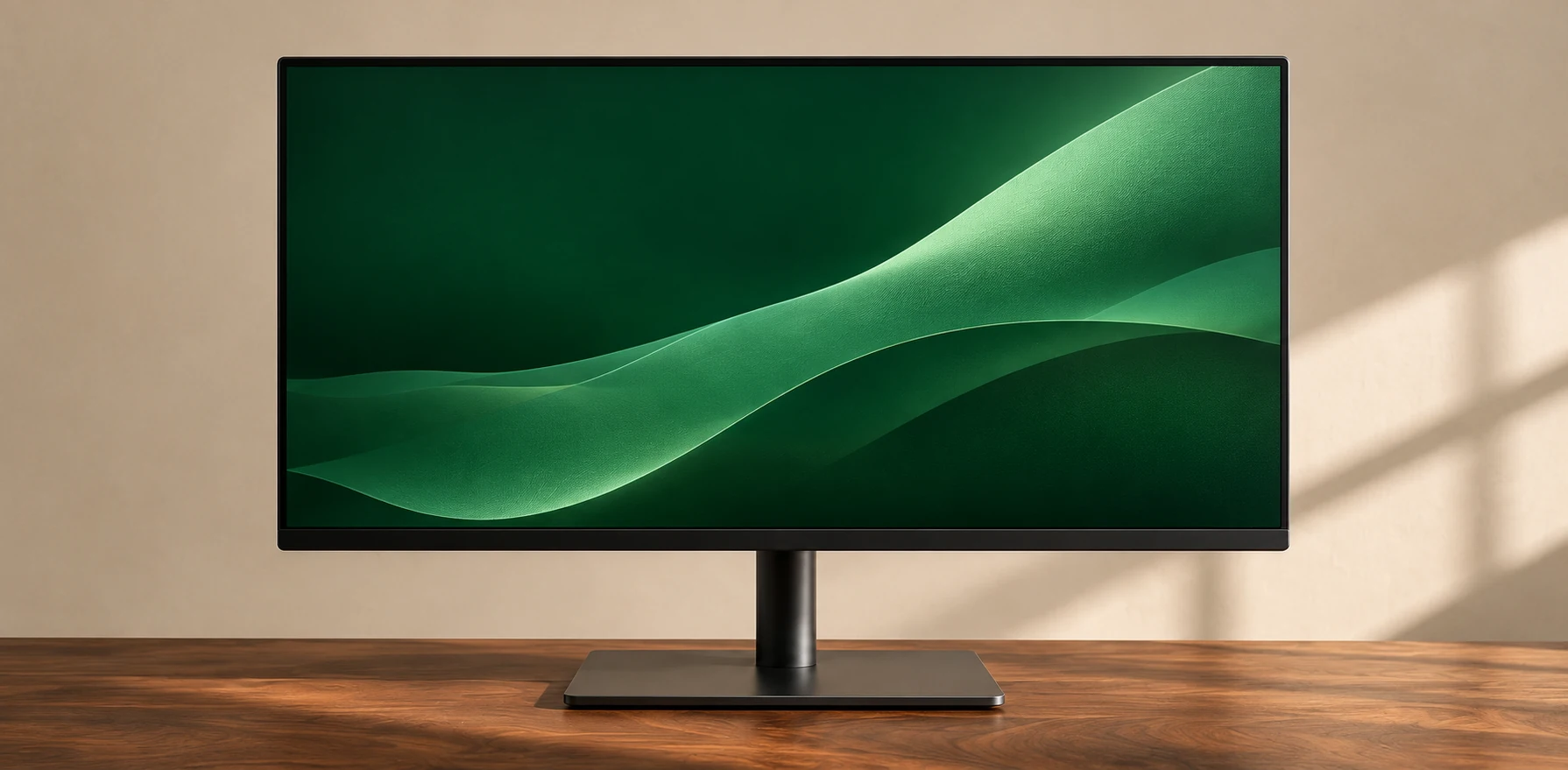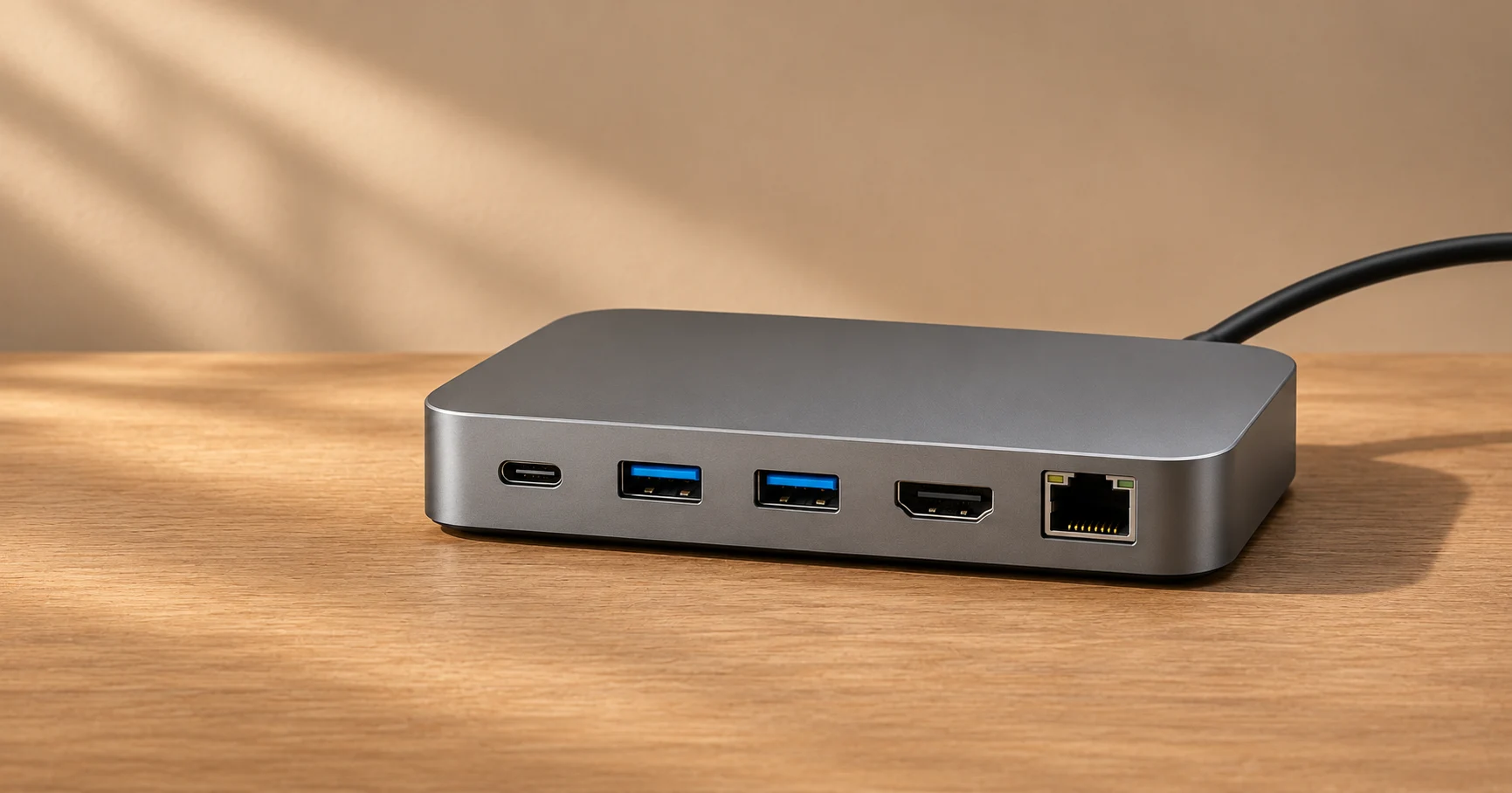
A dock is useful when it replaces a bundle of recurring connections. Its advertised port count tells you less than the combination of screens, power and accessories it can support on your computer.
This is a buying guide based on documented specifications and technical sources.
Write down the setup
List your screens by resolution and refresh rate, then add the keyboard, storage, webcam, network connection and power you expect to use together. Separate the devices that stay on the desk from the ones you rarely connect.
Look at the host first
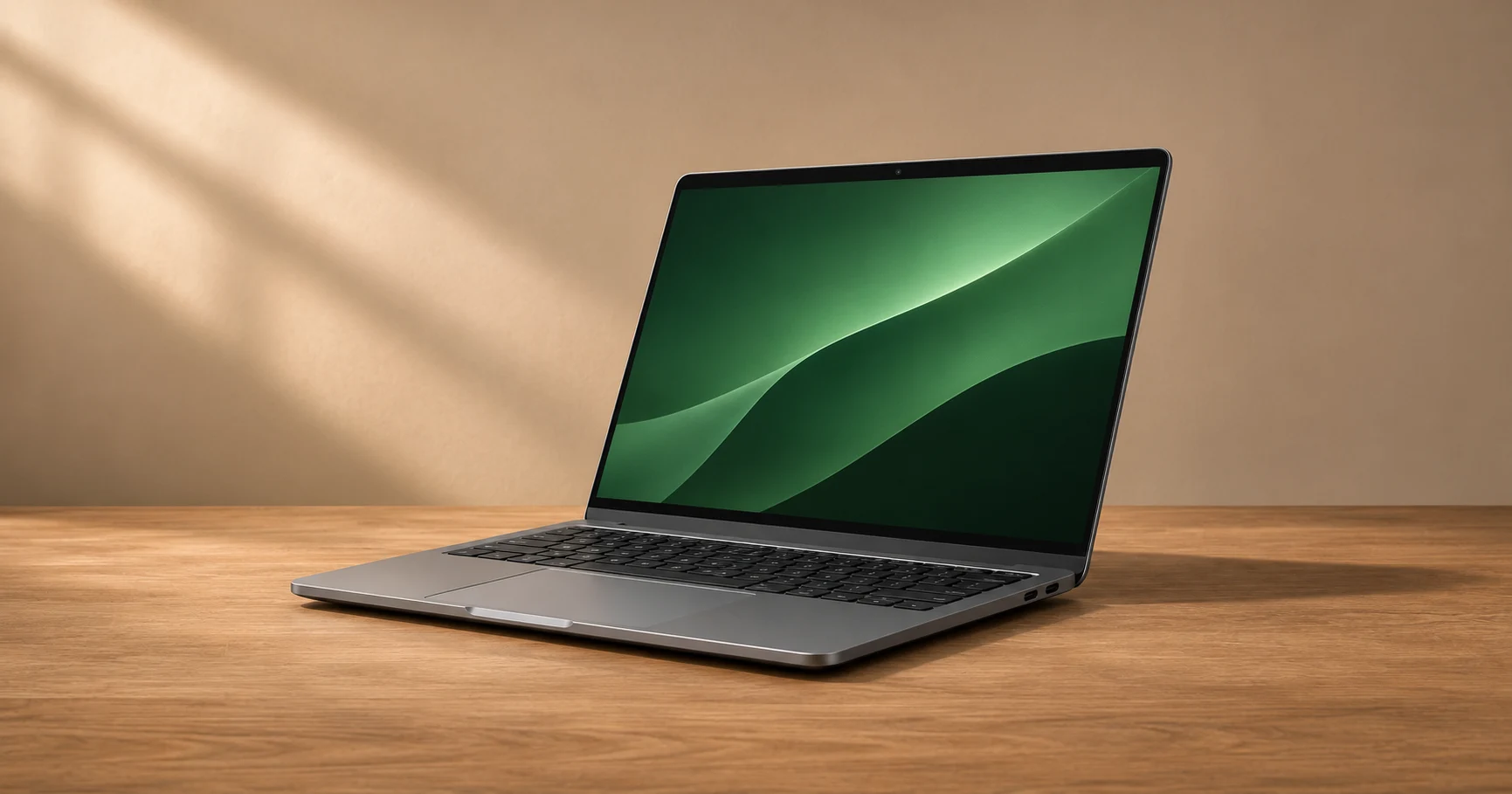
Check the computer’s specifications for the exact port you plan to use. A USB-C-shaped socket does not by itself guarantee video or laptop charging. If you need two external displays, confirm the host, operating system and dock support the combination, including the required mode for both screens.
Check charging at the laptop end
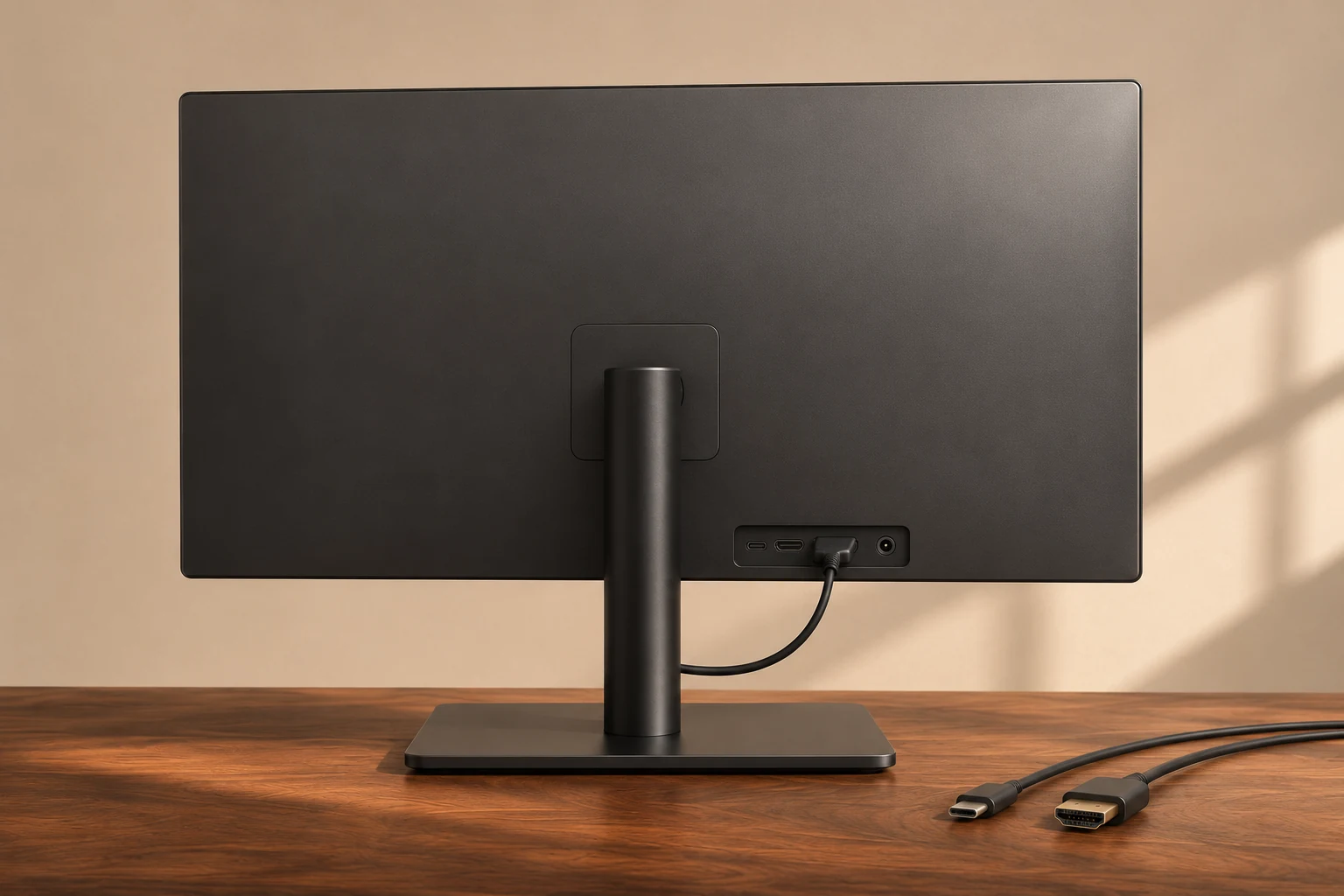
Look for the upstream charging rating delivered to the computer rather than assuming it equals the power adapter rating. Check what cable and power supply are included. A dock that works with one screen and a mouse may be a poor fit for several screens and fast storage used together.
Pros
One connection can make a permanent desk easier to use with a compatible laptop and reduce repeated plugging and unplugging.
Trade-offs
Compatibility depends on the host, cable, dock, system and screens. Some docks add bulk or still require the laptop’s charger.
Who it suits
Laptop users who connect a monitor and several peripherals to the same desk every day.
Conclusion
Buy for a checked setup rather than a longer spec sheet. Confirm the complete display and charging combination before you commit.